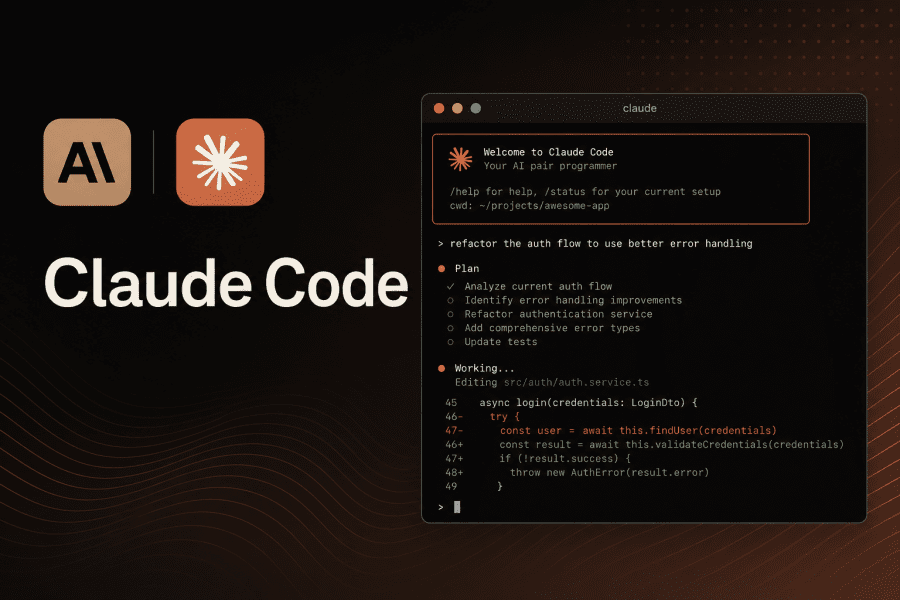
Claude Code is an AI coding agent from Anthropic that works directly in your terminal or desktop app. Unlike autocomplete tools, it operates at the project level: reads files, edits code, runs commands, and works with Git autonomously — all through natural language prompts. This guide covers how to install it, what it can do, and where it falls short.
What is Claude Code
Claude Code is an agentic coding tool from Anthropic. Unlike a chatbot that answers questions and waits, Claude Code acts: it reads your project files, makes edits, runs tests, commits to Git, and works through multi-step tasks autonomously.
Key specs: context window up to 1 million tokens, support for parallel agents, and direct access to your filesystem and Git. It works independently of any IDE — through the terminal or its own desktop application.
Claude Code launched in limited preview in February 2025 and became generally available in May 2025. Since then it has become one of the most widely used AI tools among professional developers.
Three Ways to Use Claude Code
Claude Code is available in several formats — pick the one that fits your workflow:
| Method | Best for | Platforms |
|---|---|---|
| CLI (terminal) | Terminal-first developers, CI/CD pipelines, scripting | macOS, Linux, Windows |
| Desktop App | Those who want a GUI, parallel sessions, and visual diffs without a terminal | macOS, Windows |
| VS Code / JetBrains | Developers who want to stay inside their IDE | macOS, Linux, Windows |
💡 You can combine them: start a session in the CLI and continue in the Desktop App with the /desktop command — or the other way around.
Requirements and Pricing
Claude Code requires a paid Claude subscription. The free plan does not include access.
| Plan | Price | Best for |
|---|---|---|
| Claude Pro | $20/mo | Most developers |
| Claude Max | $100/mo | Power users, higher usage limits |
| Claude Max 20x | $200/mo | Heavy workloads, multiple parallel sessions |
| API (Anthropic Console) | Pay-per-use | Enterprise and API access |
💡 Already on Claude Pro at $20/mo? Claude Code is already included — just install it and log in.
A note on parallel sessions: running multiple sessions simultaneously multiplies token consumption proportionally. Pro plan users can hit their limits quickly when running several Desktop App sessions at once — factor this in when choosing a plan.
Installing the CLI (Terminal)
The recommended approach is the native installer. No Node.js required, auto-updates in the background, and it’s signed by Anthropic.
macOS and Linux
curl -fsSL https://claude.ai/install.sh | shAfter installation, the binary will be at ~/.local/bin/claude. Make sure that path is in your PATH:
export PATH="$HOME/.local/bin:$PATH"Windows (PowerShell)
irm https://claude.ai/install.ps1 | iex⚠️ If you see the error “The token ‘&&’ is not a valid statement separator” — you’re in PowerShell, not CMD. The command above is intended for PowerShell. Installing Git for Windows is also recommended.
Homebrew (macOS)
brew install claude-codeHomebrew doesn’t auto-update. Run brew upgrade claude-code periodically to stay current.
Verify the installation
claude --versionDesktop App: Visual Interface for Parallel Work
On April 14, 2026, Anthropic released a fully redesigned Claude Code desktop application for macOS and Windows. This isn’t a wrapper around the terminal — it’s a dedicated environment built for parallel agentic work.
How to install the Desktop App
Download it from the official page: claude.com/download. After installation, sign in and open the Code tab.
⚠️ The Desktop App is not available on Linux — use the CLI instead.
Desktop App features
Parallel sessions with Git isolation. The sidebar shows all active and recent sessions. Each session in a Git repository gets its own isolated copy of the project via Git worktrees — changes in one session don’t affect others until merged. You can refactor one repo and fix bugs in another simultaneously.
Integrated terminal. Run tests and builds without leaving the app. The terminal opens in the session’s working directory and sees the same files Claude is editing. Shortcut: Ctrl+`.
Built-in file editor. Open and edit files directly in the app for quick changes — no need to switch to VS Code.
Redesigned diff viewer. Built for quickly reviewing large changesets. You can leave comments on specific lines and Claude will read them and apply the changes.
Extended preview panel. HTML files and PDFs open directly in the app. Live preview of running local dev servers is also supported.
Drag-and-drop layout. All panels — terminal, preview, diff, editor, chat — can be dragged and arranged into any grid layout.
Side Chat. Cmd+; (macOS) or Ctrl+; (Windows) opens a conversation branch in the context of the current session without interrupting the main agent flow. Perfect for asking clarifying questions while Claude is working.
Desktop App keyboard shortcuts
| Action | macOS | Windows |
|---|---|---|
| New session | Cmd+N |
Ctrl+N |
| Open terminal | Ctrl+` |
Ctrl+` |
| Side Chat | Cmd+; |
Ctrl+; |
| View diffs | Cmd+Shift+D |
Ctrl+Shift+D |
| Toggle display mode | Ctrl+O |
Ctrl+O |
| All keyboard shortcuts | Cmd+/ |
Ctrl+/ |
CLI vs Desktop App: which one to choose
If your workflow is “I write code, AI helps me” — CLI or an IDE plugin will feel more natural. If it’s “AI handles tasks, I review results” — the Desktop App gives you a full overview of multiple parallel tasks in one window, which the terminal simply can’t match.
First Run
In the terminal
cd /path/to/your-project
claude
In the Desktop App
Open the app → Code tab → click + New session or press Cmd+N → select your project folder.
On first launch, you’ll be asked to log in. After authentication, credentials are saved to ~/.claude/ and used by both the CLI and the Desktop App.
Start by orienting Claude to your project:
What does this project do? Walk me through the architecture.This helps the tool build an accurate model of the codebase and significantly improves the quality of every subsequent request. Before modifying any files, Claude Code always asks for your permission.
Core Commands
| Command | What it does |
|---|---|
/init |
Creates a CLAUDE.md file with project settings |
/plan |
Plan mode — Claude thinks before acting |
/login |
Switch accounts |
/config |
Open settings |
/mcp |
Manage connected MCP servers |
/desktop |
Move a CLI session to the Desktop App |
/bug |
Submit a bug report to Anthropic |
claude update |
Manually update to the latest version |
Example prompts
# Debugging
Fix the TypeError in src/auth/login.js

# New feature
Add email validation to the registration form

# Refactoring
Refactor the database module — replace callbacks with async/await

# Git
Create a commit with a descriptive message for all staged changes

# Analysis
Why is the API endpoint /users/profile returning 500 errors?
The CLAUDE.md File: Your Project’s Persistent Instructions
CLAUDE.md is a special file that Claude Code reads automatically at the start of every session — in both the CLI and the Desktop App. It acts as a standing instruction set: project commands, architecture overview, coding conventions.
Create it with /init or manually in your project root. Example:
## Commands
- `npm run dev` — start dev server on port 3000
- `npm run build` — production build
- `npm test` — run Jest
- `npm run lint` — ESLint check

## Architecture
- Next.js 15 with App Router
- PostgreSQL + Drizzle ORM
- Auth via Clerk

## Conventions
- Server components by default
- TypeScript strict mode, no any
- Commits in imperative mood, max 72 characters
Commit this file to Git so every team member gets the same setup automatically.
Which Model to Use
Claude Code gives you access to two main models:
- Claude Sonnet 4.6 — fast and cost-effective. The right choice for ~80% of tasks: writing functions, fixing bugs, writing tests, explaining code.
- Claude Opus 4.6 — the powerful model with a 1M token context window. Use it for large-scale refactoring, architectural decisions, and analysis of big codebases.
A simple rule: start with Sonnet, switch to Opus when the task spans more than two files or requires deep architectural reasoning.
10 Tips for Getting the Most Out of Claude Code
1. Start every session with context
Before your first task, ask Claude to describe the project. It takes 30 seconds but meaningfully improves the quality of everything that follows.
What does this project do? Walk me through the architecture.This is especially important after a break or when starting on an unfamiliar codebase. Claude builds an internal model of the project, and the first few prompts set the tone for the entire session.
2. Use /plan for complex tasks
If a task touches multiple files, request a plan first. Claude will describe what it intends to do and in what order — you can redirect before any changes are made.
/plan
Refactor the authentication module to use JWT instead of session cookies — don't implement yet
Key detail: include “don’t implement yet” if you want a plan without immediate execution — otherwise Claude may jump straight into code. Correcting a plan is far easier than unwinding a half-built feature. For small, single-file tasks, skip the plan and just describe the task directly.
3. Be specific in your prompts
Instead of “fix the bugs” — “fix the TypeError on line 42 of auth.js that occurs when email is empty.” The more precise the request, the more precise the result. Claude excels at well-defined tasks and struggles with vague ones.
If a task is complex and you’re not entirely sure of the requirements yourself, ask Claude to interview you first:
Before writing any code, ask me clarifying questions about this feature.4. Treat CLAUDE.md as a living document
The file with your architecture overview and commands reduces clarifying questions and makes every session faster — in both the terminal and the Desktop App. More importantly: keep updating it.
A rule from Claude Code creator Boris Cherny: every time Claude does something wrong and you correct it, add a rule to CLAUDE.md so the mistake doesn’t repeat. Over time, the file becomes accumulated institutional knowledge about your project.
A few practical rules for CLAUDE.md:
- Keep it short — around 100 lines is enough. A long file loads in full every session and eats through your context budget before any work begins.
- For large domain documentation, use references to separate files:
When working with payments, first read docs/payment-architecture.md— Claude will only read it when relevant. - Add a
don'tsection: anti-patterns and prohibited practices work just as well as positive rules.
5. Give Claude a way to verify its work
Instead of just asking for a function, tell Claude how to check that it’s correct: a test command, expected output, or a specific assertion. This way Claude iterates to a working result rather than stopping at the first attempt.
Add input validation to the registration form.
Verify with: npm test -- --testPathPattern=registration
6. Install the gh CLI for GitHub workflows
Install the official GitHub CLI (gh) — Claude knows how to use it directly: create pull requests, read issue comments, check CI logs. Without gh, Claude falls back to the GitHub REST API and hits rate limits quickly.
# macOS
brew install gh
gh auth login
7. Point Claude to CLI tools for external services
When working with cloud services, explicitly tell Claude to use their CLI: aws, gcloud, sentry-cli. CLI commands consume far fewer tokens than working through APIs with response parsing.
Use the AWS CLI to check the Lambda logs for the last hour.8. Use Side Chat for questions while the agent is working
In the Desktop App, don’t interrupt the agent just to ask a clarifying question. Open Side Chat (Cmd+; on macOS, Ctrl+; on Windows), ask there — the main agent flow won’t be interrupted and the primary session context won’t reset.
9. Don’t add too many MCP servers at once
Every connected MCP server adds tools to Claude’s context. Start with one or two that actually matter to your workflow, not the entire catalog. Good starting points: Playwright for UI testing, a direct database connection, GitHub or Linear for issue tracking.
10. Watch token consumption with parallel sessions
Each parallel session loads its own context window. Four simultaneous sessions means four context windows running in parallel. Heavy parallel use in the Desktop App drains Pro plan limits ($20) quickly. Plan ahead or consider upgrading to Max. Spend your first week with the Desktop App on non-critical tasks to understand your actual usage rate before committing to a workflow.
Limitations and Risks: What to Know Before You Start
Claude Code is a powerful tool, but an honest assessment requires talking about its downsides. Here’s what actually gets in the way of daily work.
The agent can delete or break code with no way to recover
The most serious risk: Claude Code operates autonomously and has direct access to your filesystem. In 2026, several cases were documented where developers lost years of work after granting AI agents access to infrastructure commands without sufficient oversight. The most notable — a startup’s database wiped in seconds.
The most common failure modes in autonomous operation: the agent enters an endless correction loop where each fix introduces a new regression; it references file paths that don’t exist in the repository; it makes breaking changes to shared modules; it causes test regressions in areas unrelated to the original task.
How to reduce the risk: don’t run the agent in fully autonomous mode on production servers with real credentials. Use isolated environments — containers, virtual machines, or read-only branches. Always work in a separate Git branch and make checkpoint commits before large tasks.
Usage limits run out fast and unpredictably
The Claude Code limit system is one of the biggest sources of user frustration. Subscription quotas are measured in a rolling 5-hour window and are shared between Claude.ai and Claude Code. If you spent the morning in long Claude.ai conversations, your Claude Code quota for the afternoon will be proportionally reduced.
In February–March 2026, users began reporting a sharp acceleration in quota depletion. What used to last an eight-hour work session started burning through in an hour. Pro plan quotas started running out at the start of the week, leaving users without access for several days. Anthropic acknowledged the issue and called it a top priority, but a full fix has yet to ship.
A separate problem: in March 2026, Anthropic cut the cache time-to-live from 1 hour to 5 minutes. Any pause longer than five minutes — compiling, reading docs, thinking through an architecture decision — resets the cache. On the next request, Claude Code has to re-read the entire codebase from scratch, multiplying token consumption.
Pricing: expensive for heavy use
$20/month sounds reasonable, but it’s not enough for active use. Parallel sessions, large codebases, and frequent Opus 4.6 requests drain the limit fast. Max plan subscribers at $100/month have reported hitting their monthly limit in about 90 minutes of moderate work. Switching to the direct API removes limits, but you pay per token — and at high intensity, the bill can quickly exceed the cost of the most expensive subscription plan.
Output quality is inconsistent
During the degradation period (February–March 2026), the model frequently acknowledged poor output quality only after the user pointed out an error — after incorrect code had already been written. An autonomous agent can confidently move in the wrong direction for several steps before you notice.
Claude Code struggles with ambiguous requirements. Given unclear tasks that need stakeholder input, the agent tends to loop until hitting the iteration limit, produce contradictory code, or invent requirements that were never specified.
Not available in all countries
Claude Code doesn’t work in all regions. Users from Russia and several other countries face both network restrictions and payment barriers.
Conclusion
Claude Code is not just another AI coding tool. It’s an agent that understands your full project context and gets real work done — in the terminal for those who prefer the command line, and in a full-featured desktop app with parallel sessions, an integrated terminal, and visual diff review for everyone else.
If you’re already paying for Claude Pro, Claude Code is already available to you. Get started now:
- Install the CLI or download the Desktop App from claude.com/download
- Start a session in your project folder
- Create a
CLAUDE.mdwith/init - Describe your first task in plain English
Official documentation: docs.claude.com/en/docs/claude-code/overview