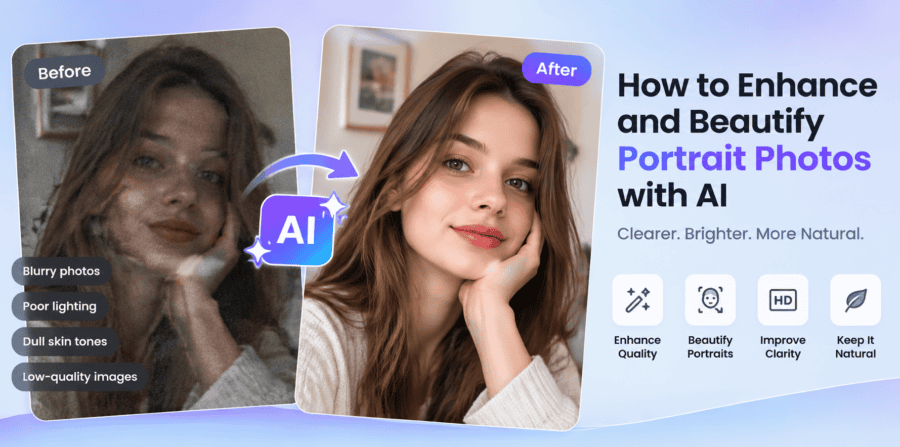
Many portrait photographs do not achieve the desired quality due to indistinct facial features, poor lighting, or dull skin tones on older cameras and devices. Overuse of filters in certain instances will make the picture unnatural and deprive it of its originality. By using AI-powered portrait beautification tools and a photo enhancer, users can enhance facial appearance, refine skin texture, and create more polished portraits without relying on complex manual retouching.This guide explores different ways to enhance and beautify portrait photos, including AI beautification templates, online photo editing tools, and manual retouching methods.
Why Do Portrait Photos Need Enhancement and Beautification?
Not all portrait photos appear to be perfect when taken. Image quality can be lowered due to bad cameras, lighting problems and editing errors. Enhancement helps in making the person look better in terms of clarity, color, and face without the need to change the original look.
Low-Quality Facial Details
Low-quality or unclear images tend to lose vital facial features like eye sharpness, hair texture and skin complexion. This normally happens to old images and low-res selfies. The sharpness and lost details can be enhanced with AI. It helps portraits appear clearer without altering the identity of a person.
Uneven Lighting and Dull Colors
The quality of lighting used can greatly influence the quality of portraits. Darkness, shadows and dull colors will make a photograph less appealing. The light could also be so poor as to make the skin tones look unnatural. Image enhancement is able to make changes in the brightness, contrast and colors. This results in a more realistic and balanced portrait.
Skin Imperfections and Uneven Texture
Portrait photos may show unwanted details such as noise, spots, and uneven skin texture. AI beautification can help refine skin texture, reduce minor imperfections, and create a more polished appearance while keeping the portrait natural.
Unnatural Editing Results
There are numerous conventional filters that may turn portraits into something unreal. Excessive smoothing or heavy effects may eliminate natural features on the face.
AI-based portrait enhancement is oriented towards natural enhancement. It assists users in producing sharper, cleaner and more professional-looking portraits without appearing to be fake.
What Makes AI a Better Choice for Portrait Beautification?
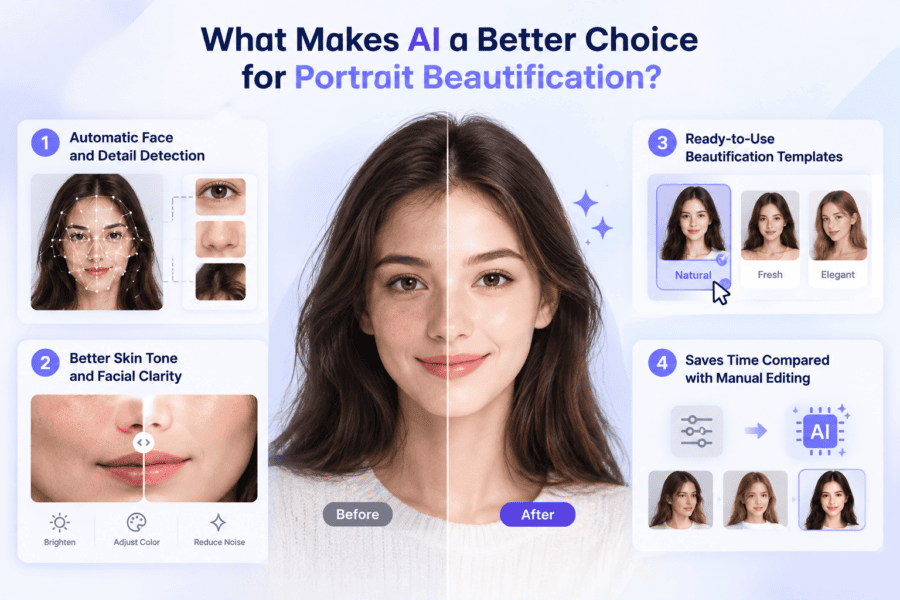
AI has transformed the process of people improving portrait pictures. AI technologies can process images automatically and can improve them in a few seconds. They pay attention to improving quality and retain the portrait’s natural look, making AI portrait beautify a practical option for quick and natural-looking results.
Automatic Face and Detail Detection
The capability to recognize faces and critical areas of the face is one of the significant benefits of AI. AI algorithms are able to detect eyes, skin, hair, and facial structure.
Better Skin Tone and Facial Clarity
Beautification can be applied through artificial intelligence to improve skin tones, remove unwanted noise and make the face clearer. It changes the brightness, colors and texture depending on the image condition.
Automatic Face and Feature Recognition
Instead of adjusting every setting manually, some AI photo editors provide ready-to-use beautification templates. Users can choose a suitable style and apply a coordinated set of portrait enhancements with minimal effort.
Saves Time Compared with Manual Editing
Manual retouching of portraits can be time-consuming. The editing software commonly needs the user to be experienced in order to achieve professional output. This is made easier by AI tools that are able to make complex adjustments automatically. Within a couple of clicks, a user is able to add details to a portrait without spending hours on detailed editing.
Altogether, AI is an effective option in terms of portrait beautification due to its ability to be fast, accurate, and natural. It assists users in enhancing their photos without distorting the original character and attributes of the subject.
Method 1: How to Beautify a Portrait Photo with HitPaw FotorPea
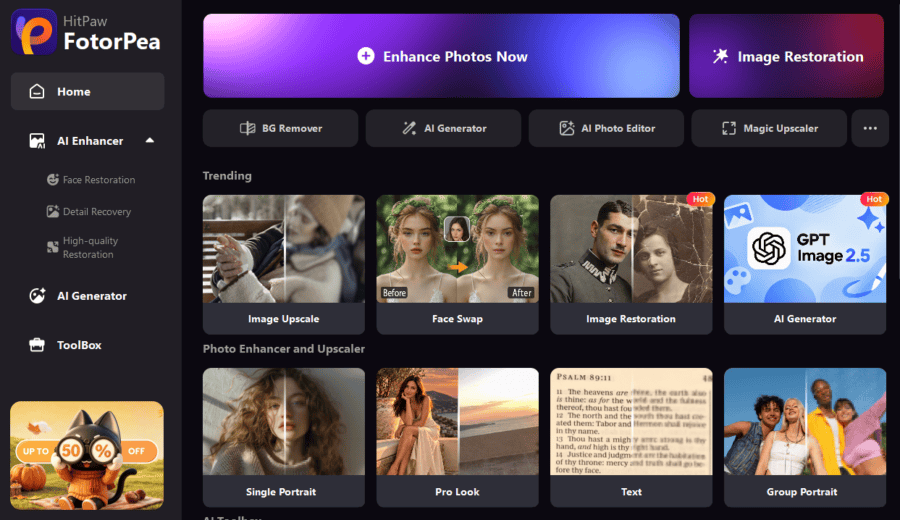
HitPaw FotorPea provides AI-powered tools for enhancing and beautifying portrait photos. Its Portrait Beautify feature in the Image Enhancement workflow helps users refine facial appearance, improve skin texture, and create a more polished look. With ready-to-use beautification templates, users can beautify a photo by applying different portrait styles without manually adjusting every retouching setting.
Key Features
- AI Portrait Beautify: Enhances the overall appearance of portraits while maintaining natural facial features.
- Beautify Templates: Provides ready-to-use portrait styles that can be applied without complicated manual adjustments.
- Natural Skin Enhancement: Refines skin texture and facial appearance without excessive smoothing.
- Facial Detail Enhancement: Improves the clarity and appearance of important facial details.
- Quick Preview: Lets users compare the original and beautified portrait before exporting.
- Beginner-Friendly Workflow: Makes portrait beautification accessible even for users without professional retouching experience.
How to Beautify a Portrait Photo with HitPaw FotorPea
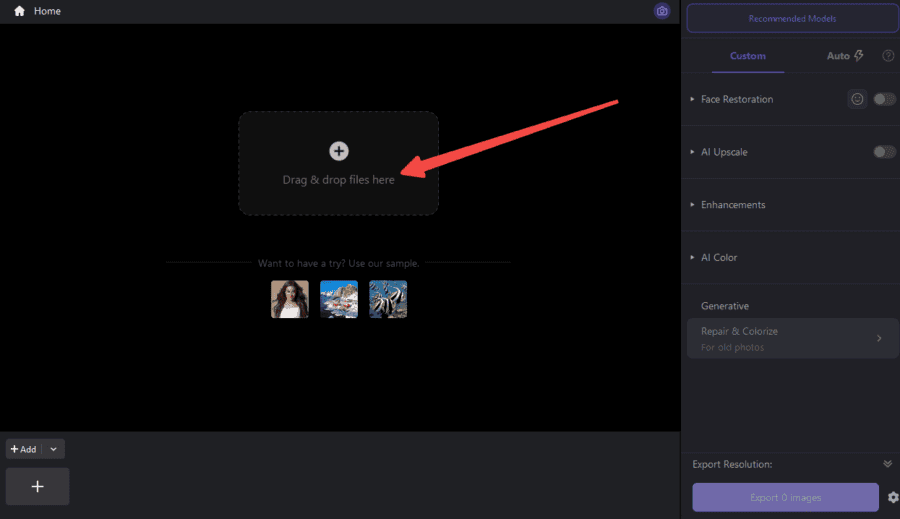
Step 1: Upload Your Portrait Photo
Click Open HitPaw FotorPea and add a portrait image that you wish to enhance.
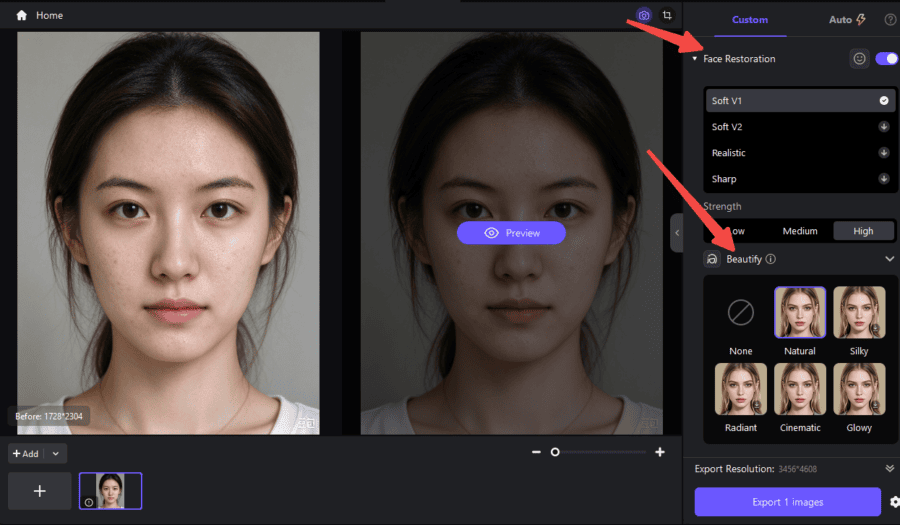
Step 2: Select a Portrait Beautify Template
After uploading the image, go to the Image Enhancement workflow and select Portrait Beautify. Choose your preferred beautification template to apply an AI-powered enhancement style.
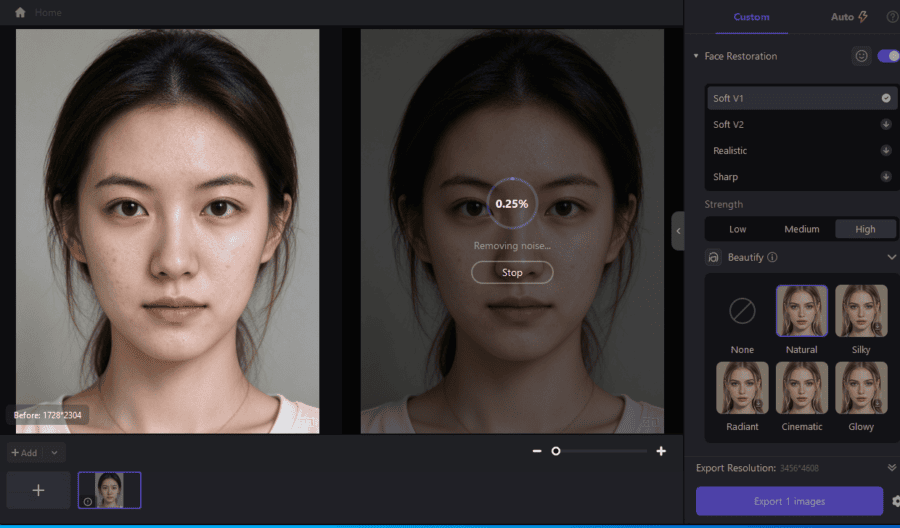
Step 3: Preview the Enhanced Portrait
Preview the generated result and compare it with the original image. Check improvements in skin details, facial clarity, and overall portrait appearance before applying the changes.
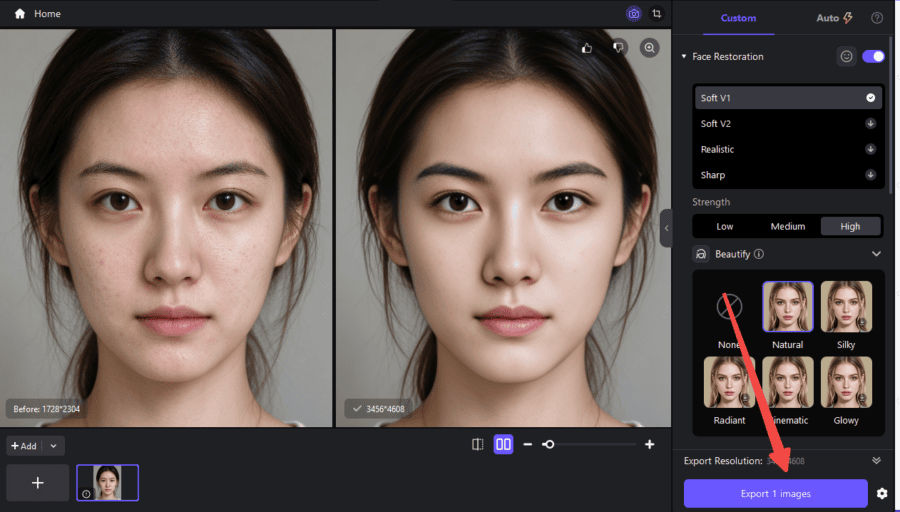
Step 4: Apply Enhancement and Export the Image
After the enhancement is complete, export the final portrait photo for sharing or further use.
Pro Tip
Try different beautification templates before exporting to find the style that best matches the portrait. For a natural-looking result, choose a template that enhances the face without making the skin or facial features appear overly edited.
Method 2: Manually Retouch Portrait Photos
Manual portrait retouching is a traditional editing method used by photographers and advanced users. It gives greater control of each component of the image. Users are able to modify certain areas and develop a unique editing style. Nonetheless, it involves more knowledge and more time than solutions based on AI.
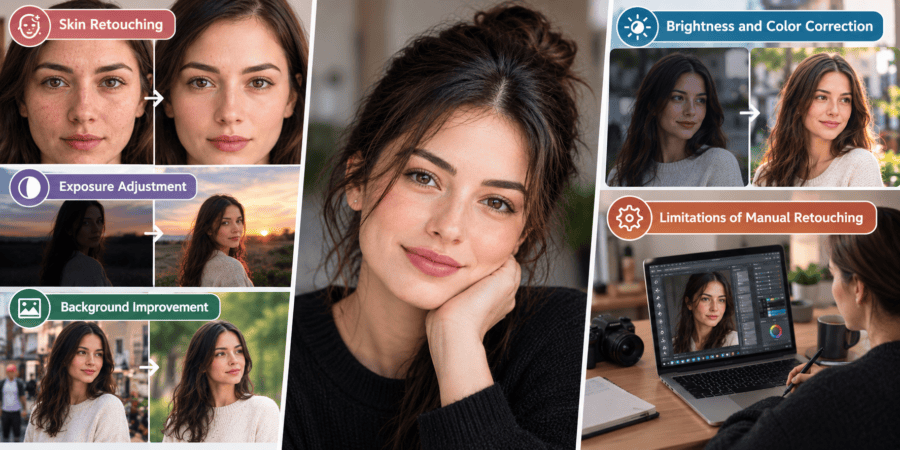
Skin Retouching
One of the most popular processes of portrait editing is skin retouching. Users are able to remove minor flaws, eliminate undesired spots and enhance the appearance of skin. The idea is to achieve a more natural skin texture without being overly clean. Smoothing should be done sparingly since it may result in making the portrait look unrealistic.
Brightness and Color Correction
Mood and quality of a portrait can be disturbed by lighting issues. Manual editing enables users to control the brightness, contrast, white balance and colors. These adjustments assist in returning the skin tones to their natural state and enable the picture to appear more balanced. Photos taken in bad light conditions can be particularly corrected with the help of color.
Exposure Adjustment
Exposure is used to make an image brighter or darker. Underexposed portraits might appear excessively dark, and overexposed pictures might lose facial features. The shadows, highlights and general visibility can be recovered by using manual adjustments. This provides users with greater control over the end product.
Background Improvement
The background may have a powerful influence on the appearance of a portrait. Users are able to blur distractors, change colors or enhance the brightness of the background. The background is clean and allows the subject to be more prominent and gives it a more professional appearance.
Limitations of Manual Retouching
Manual editing is flexible, but presents certain challenges. The user should be acquainted with photo editing software and should be knowledgeable about tools like layers, brushes and adjustment settings. Retouching is a complicated procedure, which might demand a lot of time in case of editing several portraits.
AI improvement tools can offer an easier workflow to novices or users who require quicker outcomes. Manual editing is still applicable to professionals who may require full control over all the details of a portrait.
Common Mistakes When Beautifying Portrait Photos
The enhancement of portrait pictures by beautifying them may be effective in enhancing the beauty of the picture; however, improper editing decisions may make pictures appear unnatural.
Over-Smoothing the Skin
The use of excessive skin smoothing is one of the many errors. Over-smoothing eliminates skin texture, fine lines, and features. It can give a plastic or artificial look. The editing of realistic portraits should maintain a certain natural texture and minimize the undesirable flaws.
Using Low-Quality Source Images
The resultant image is directly dependent on the quality of the original image. Always remember to use the best original photo possible in order to achieve better results. Good resolution images, good lighting and facial features give a better result during beautification.
Adding Too Many Filters
The other typical error is excessive filters and effects. Unrealistic portraits can be caused by strong color variations, heavy skin effects, and brightness. The photo should be supported by filters, rather than concealing its original flair.
FAQs About Enhance and Beautify Portrait Photos with AI
- How to Beautify a Photo Using AI?
To learn how to beautify a photo using AI, upload the image to an AI photo enhancement app and choose the portrait improvement option.
- What are AI portrait beautification templates?
AI portrait beautification templates are ready-to-use editing styles designed to enhance facial appearance, skin texture, and other portrait details without requiring users to adjust multiple settings manually.
- What is the best AI tool to enhance and beautify portrait photos?
The best AI tool depends on the user’s needs and editing goals, although AI image enhancers such as HitPaw FotorPea have options to improve the quality of portraits, reduce blur, sharpen the details, and enlarge the image with the help of AI technology.
- Can I beautify a photo online for free?
Yes, there are numerous AI photo editing tools that allow users to AI beautify an image online for free, although available features, processing limits, and export options may vary.
- How can I improve the quality of a low-resolution portrait photo?
AI upscaling and enhancement can be used to enhance a poor-quality portrait. These filters process the image, sharpen the picture, deblur it, and enhance the visible details to produce a clearer image.
Conclusion
Portrait beautification can be done through different methods, including online AI tools and manual editing, such as fast online AI retouching and extensive manual retouching; however, both of them have their pros. The tools of AI improvement, such as HitPaw FotorPea, An AI-powered workflow can be an effective and efficient solution for users who want to obtain superior-looking portraits without the complicated editing process.